In this article
GitHub Copilot crossed 20 million all-time users by mid-2025, with 90% of Fortune 100 companies now running it across their engineering teams (per Microsoft’s July 2025 earnings call).
That means millions of suggestions are accepted, rejected, or ignored every day across thousands of organizations. GitHub captures a lot of that activity in its native analytics, and knowing how to use those reports is becoming table stakes for engineering teams.
The platform made its native Copilot usage metrics generally available in February 2026. The built-in dashboards now cover a lot more ground than they used to, from adoption trends and code generation activity to PR lifecycle data.
You can also pull that data through the API for custom reporting. It’s a strong foundation, though the native analytics still leave some gaps worth knowing about.
In this guide, we cover how Copilot’s analytics system works, what each report and metric tells you, how to access the data, and where teams typically need to look elsewhere for deeper visibility.
Overview of GitHub Copilot Usage Analytics
Overview of GitHub Copilot Usage Analytics
GitHub Copilot usage analytics is a built-in reporting toolkit that tracks how developers interact with Copilot across your organization or enterprise.
GitHub made it generally available in February 2026, after a public preview that launched at Universe 2025. The enterprise-level dashboards are available on GitHub Enterprise Cloud, while organization-level reporting works across all organization types, including standalone Free and Team orgs.
There are a few ways to access the data. You can use the usage metrics dashboard or the code generation dashboard directly in GitHub. Or, if you want to build your own reports, you can pull raw data through the REST API or NDJSON exports.
How GitHub Copilot Analytics Works
How GitHub Copilot Analytics Works
Copilot’s analytics system runs on IDE telemetry. Every time a developer receives a code suggestion, accepts or dismisses it, opens a chat session, or interacts with agent mode, the editor sends that activity data back to GitHub. The CLI also reports telemetry for command-line interactions.
This data flows into three reporting layers:
- The usage metrics dashboard provides a 28-day visual overview of adoption and engagement trends at the enterprise or organization level
- Code generation dashboard breaks down how much code Copilot is producing across completions, chat, and agent features
- REST API and NDJSON export give you raw, exportable data at the enterprise, organization, and user level for custom reporting and BI tools
There are also a few things to know about how the data behaves:
- Telemetry has to stay enabled: Most editors have telemetry on by default, but if a developer turns it off, their activity won’t show up anywhere in the reports. They’re invisible to the analytics system.
- Not all Copilot surfaces are covered: The metrics only capture IDE and CLI activity. Copilot Chat on GitHub.com and GitHub Mobile are excluded.
- Data has a two-day lag: Activity data is processed and made available within two full UTC days after the day closes.
- Organization metrics are based on membership, not seat assignment: A developer’s usage report gets attributed to every organization they belong to in the enterprise, regardless of which org assigned their Copilot seat. At the enterprise level, each user is counted only once.
For teams just getting started, the dashboard gives you enough to track rollout progress and spot adoption gaps. The API and NDJSON export become more useful once you need to combine Copilot data with other engineering metrics or feed it into a centralized reporting tool.
| Good to know 💡: GitHub recommends the Copilot usage metrics API for any new integrations or analyses. It provides the most complete and forward-looking view of Copilot usage data across all three scopes (enterprise, organization, and user). |
Key GitHub Copilot Analytics Reports and Metrics
Key GitHub Copilot Analytics Reports and Metrics
GitHub Copilot’s analytics are split across two dashboards, a data export option, and a REST API. Each one serves a different use case, and the metrics they include overlap in some areas but not all.
Here’s what you’ll find in each:
Copilot Usage Metrics Dashboard
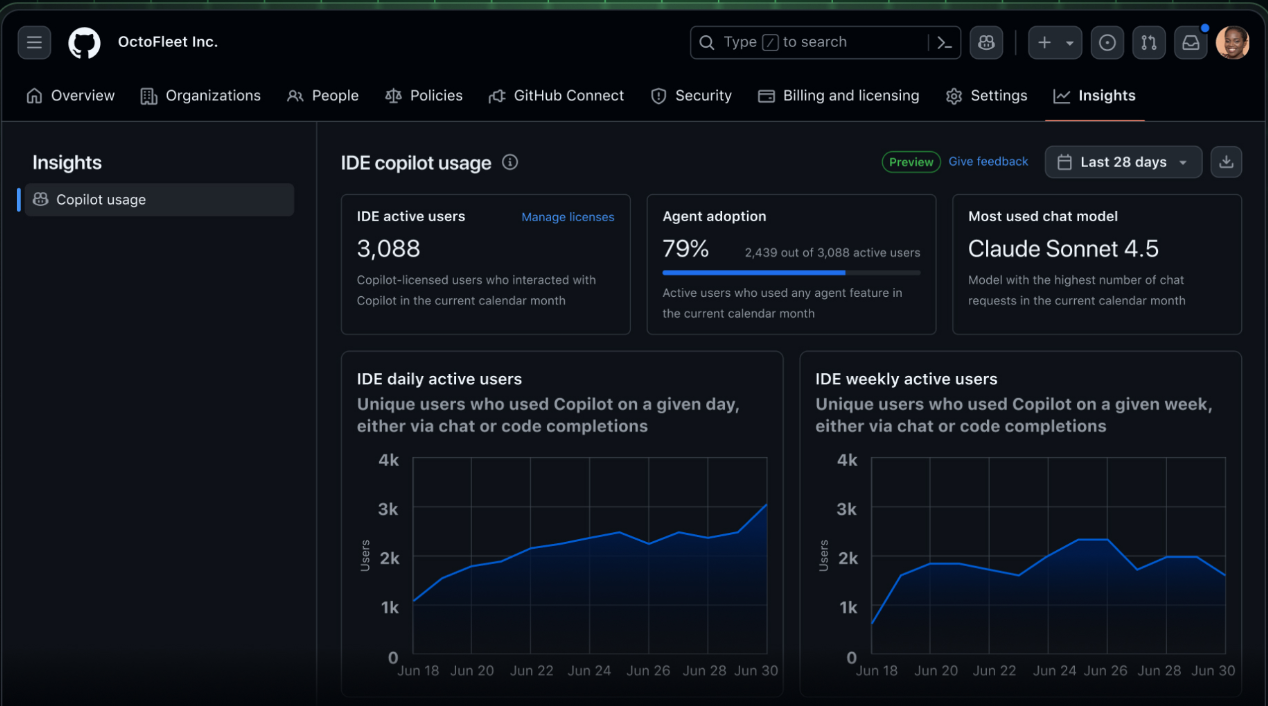
This is the primary dashboard most admins will use. It’s located under the Insights tab at the enterprise or organization level and shows 28 days of trend data.
(Source: GitHub)
The top row gives you a quick snapshot of how many developers are active, what percentage have adopted agent features, and which AI model sees the most chat activity. Scroll down, and you’ll find trend charts covering:
- Daily and weekly active users across IDE modes, including completions, chat, and agent mode
- Requests per chat mode showing how developers use Ask, Edit, Plan, and Agent mode
- Agent adoption tracking how many developers are using Copilot’s agent capabilities
- Model usage per day and per chat mode, so you can see which AI models get the most activity
- Language usage broken down by programming language, both aggregate and daily
- Editor breakdown showing usage across VS Code, JetBrains, Visual Studio, Xcode, and Eclipse
Code Generation Dashboard
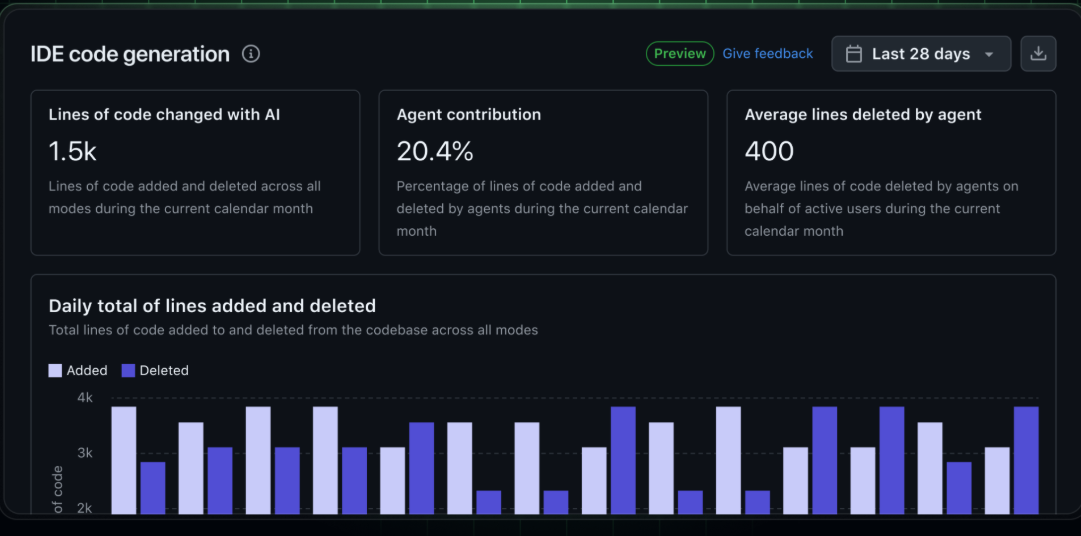
This dashboard focuses specifically on Copilot’s output. It quantifies the lines of code Copilot suggested, added, or deleted across completions, chat, and agent functionalities. Here’s what the code generation dashboard looks like:
(Source: GitHub)
The key metrics here include:
- Lines of code suggested by Copilot in the editor
- Lines of code added (accepted and inserted into the codebase)
- Lines of code deleted through Copilot-assisted edits
- Breakdowns by user-initiated vs. agent-initiated activity
These are directional metrics. GitHub positions them as a way to assess Copilot’s tangible output, but they don’t tell you whether the code that was added was any good.
Metrics Available Across Both Dashboards and the API
Some metrics span the full reporting stack. These include:
- Adoption metrics like daily active users (DAU), weekly active users (WAU), and total active users for the current calendar month
- User engagement metrics that show how frequently developers interact with Copilot and how broadly they use different features
- Acceptance rates that track how often developers keep the suggestions Copilot offers
- Pull request lifecycle metrics, including PR creation count, merge count, median time to merge, and review suggestion activity. These let you compare overall PR throughput against Copilot-assisted PRs specifically.
| Tip: GitHub recommends looking at patterns across these signals rather than fixating on a single number. For example, rising DAU alongside a climbing acceptance rate suggests developers are finding Copilot’s output valuable. A jump in active users with flat engagement might mean people are signing up but not sticking with it. |
NDJSON Export and REST API
For teams that need to go deeper or pipe data into their own BI tools, GitHub offers two options:
- The NDJSON export lets you download raw data from the dashboard
- The REST API gives you programmatic access at three levels (enterprise, organization, and user)
The API returns daily records with fields covering all the metrics above, plus extra detail like CLI usage (tracked separately from IDE metrics) and per-user breakdowns.
How to Track Your GitHub Copilot Usage
How to Track Your GitHub Copilot Usage
The way you track Copilot usage depends on your role and plan. Here’s how it works at each level:
As an Individual Developer
If you’re on a paid plan (Pro, Pro+, or a seat assigned by your org), you can check your premium request usage in a few ways.
- In your IDE → In VS Code, click the Copilot icon in the status bar to see your current usage and remaining requests. In Visual Studio, click the Copilot icon in the top right corner, then click Copilot Consumptions. JetBrains, Xcode, and Eclipse have similar options in their status bars or menu bars.
- On GitHub.com → Go to Settings > Billing and licensing, scroll to “Metered usage,” and click Copilot. You’ll see a breakdown of your premium requests for the current month, including when the counter resets (the 1st of each month at 00:00 UTC).
- Premium request analytics → For a more detailed view, go to your billing page and click Premium request analytics. You can filter by model, feature, and timeframe, and download the data as CSV or PNG.

(Source: GitHub)
As an Organization Owner or Admin
Go to your organization’s settings, then look for the Copilot usage dashboard under the Insights section.
This gives you a 28-day view of usage trends for your org’s members, including active users, acceptance rates, chat activity, and language breakdowns.
You can also pull data through the REST API at the organization level. The API returns daily records with breakdowns by editor, language, and model.
Organization-level analytics have been available since December 12, 2025.
As an Enterprise Admin
Enterprise admins get the broadest view. Go to your enterprise account, then move to AI Controls > Copilot > Metrics > Copilot usage metrics.
From there, you can access both the usage metrics dashboard and the code generation dashboard under the Insights tab.
You also get access to:
- NDJSON exports for feeding raw data into BI tools like Grafana, Power BI, or Elasticsearch
- User-level API records so you can analyze individual developer activity
- Fine-grained access controls through custom enterprise roles, so you can grant dashboard access to engineering managers without giving them full admin permissions
| Note → No matter your access level, these metrics only track activity from developers who have telemetry enabled in their IDE. If usage numbers look lower than expected, that’s the first thing to check. |
Known Limitations of GitHub Copilot Usage Analytics
Known Limitations of GitHub Copilot Usage Analytics
GitHub’s native analytics have improved considerably since the public preview at Universe 2025, but they still have some clear blind spots.
Knowing these limitations upfront helps you set realistic expectations and figure out where you might need extra tooling:
Data Coverage Is Incomplete
The analytics system relies heavily on IDE telemetry. If a developer has telemetry disabled in their editor, their activity doesn’t show up at all. This is probably the most common reason teams see usage numbers that look lower than expected.
On top of that, not all Copilot interfaces are covered. Activity from Copilot on GitHub.com and GitHub Mobile is excluded from the usage metrics dashboards. CLI usage gets tracked separately and doesn’t count toward IDE-based active user metrics.
Reporting Has Built-In Constraints
The dashboards and API are useful, but they come with some built-in constraints that shape how you can use the data. These aren’t necessarily deal-breakers, but they’ll affect how you plan your reporting:
- The dashboard only shows a 28-day rolling window. If you need to track trends over months or quarters, you have to export data regularly or build your own storage pipeline using the API.
- Data takes up to two to three full UTC days to process. You’re always looking at a slightly stale picture.
- Org-level and enterprise-level numbers won’t match. A user who belongs to multiple orgs shows up in each org’s dashboard but gets de-duplicated at the enterprise level. GitHub mentions this in their docs, but it still catches people off guard.
Individual Developers Have Limited Visibility
This is a common pain point. Threads like these show up regularly on r/GitHubCopilot, with developers asking how to track their own usage, especially around premium requests.

The tracking options have improved (you can now check usage in your IDE and on GitHub.com), but the experience is still inconsistent across editors and plan types.
Developers who get their Copilot seat through an organization often have less visibility than those on individual plans.
Organization owners face a related issue. They can see org-level analytics, but they can’t view user-level premium request data. Only enterprise owners and billing managers have that access.
No Connection to Engineering Outcomes
The native analytics cover usage well, but they don’t extend into engineering outcomes. There’s no built-in way to see whether Copilot adoption is contributing to faster cycle times, fewer defects, or less rework. You’ll need to bring in data from other parts of your toolchain to make that connection.
GitHub acknowledged this gap in their February 2026 GA announcement, noting that they’re working toward connecting usage patterns to engineering outcomes. But as of today, that connection doesn’t exist in the native tooling.
For teams that need to tie Copilot usage to delivery metrics, cycle time, or developer productivity, that’s where third-party platforms come in.
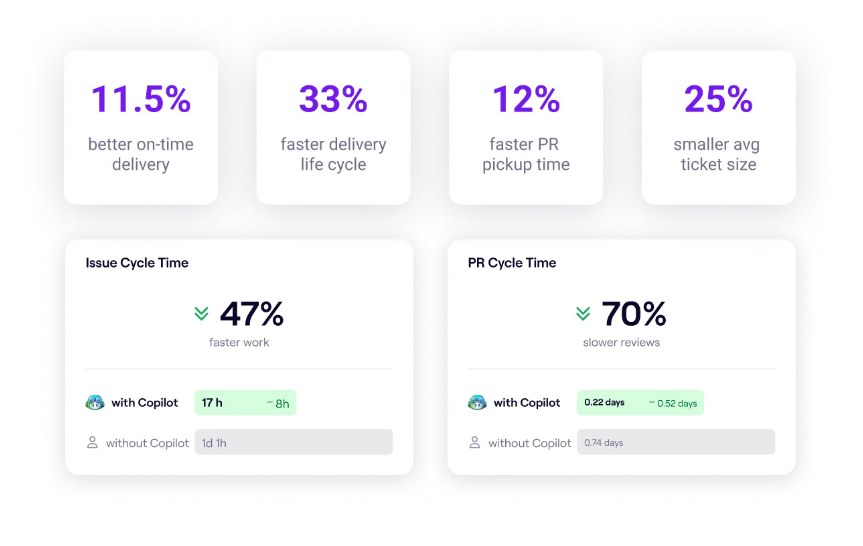
PRO TIP 💡: Jellyfish lets you compare issue cycle time, PR cycle time, and throughput for Copilot users against non-users across your org. If you need to show leadership whether Copilot is moving the needle on delivery, that’s the fastest way to get there.
Third-Party Analytics and Reporting Alternatives
Third-Party Analytics and Reporting Alternatives
For teams that need more than what the built-in dashboards offer, there are several ways to extend or replace GitHub’s native reporting. Here are the most common options:
- GitHub Copilot metrics viewer: An open-source web application that pulls from the Copilot Metrics API and visualizes adoption, acceptance rates, and language breakdowns. It supports custom date ranges up to 100 days, team comparisons, and CSV exports. Good for teams that want a richer dashboard without building one from scratch.
- Microsoft Azure accelerator: A Microsoft-published solution accelerator built to deploy on Azure App Service. It visualizes telemetry and user management data from the Copilot API, with filters for date range, language, editor, and team. It’s a solid option for organizations already running on Azure infrastructure.
- Power BI dashboard integration: Organizations can connect Power BI directly to the REST API using a provided template. It includes a KPI tab that estimates cost savings based on developer headcount and acceptance rates. Useful if your leadership already consumes reports through Power BI.
- Software engineering intelligence (SEI) platforms: A number of SEI platforms have added Copilot integrations over the past year. They’re a good fit if you want Copilot metrics alongside your DORA and cycle time data, though most stop at the data layer and don’t connect usage to business outcomes.
- Jellyfish: One of the first engineering management platforms to ship a dedicated Copilot dashboard. Jellyfish connects Copilot usage data to issue trackers, Git activity, and delivery metrics like cycle time, PR throughput, and resource allocation. You can compare cohorts of Copilot users against non-users to see whether AI tools contribute to faster delivery.
If you need better dashboards, the open-source viewers and BI templates will get you there. If you want Copilot data next to your DORA and cycle time metrics, many SEI platforms now cover that.
Jellyfish is also an SEI platform, but it leans harder into the outcome question, tying AI tool usage to delivery speed, resource allocation, and ROI. The right fit depends on what your team needs to report on.
| Heads up on API changes ❗ → The open-source metrics viewer and Power BI template both use the older Copilot Metrics API, which GitHub is shutting down on April 2, 2026. If you set up either of these tools today, plan to migrate to the newer Copilot usage metrics API before that date. GitHub recommends the new API for all new integrations – it covers more data and supports enterprise, organization, and user-level scopes. |
Measure GitHub Copilot Usage with Jellyfish
Measure GitHub Copilot Usage with Jellyfish
The native dashboards handle the “who” and “how much” well. But as Copilot matures inside your team, the conversation moves toward impact, ROI, and whether the tool is changing how your teams work.
Jellyfish picks it up from there. It launched one of the first dedicated Copilot dashboards on the market. And it has since expanded into a broader AI Impact product that also covers Cursor, Gemini Code Assist, Sourcegraph, and other tools in one place.
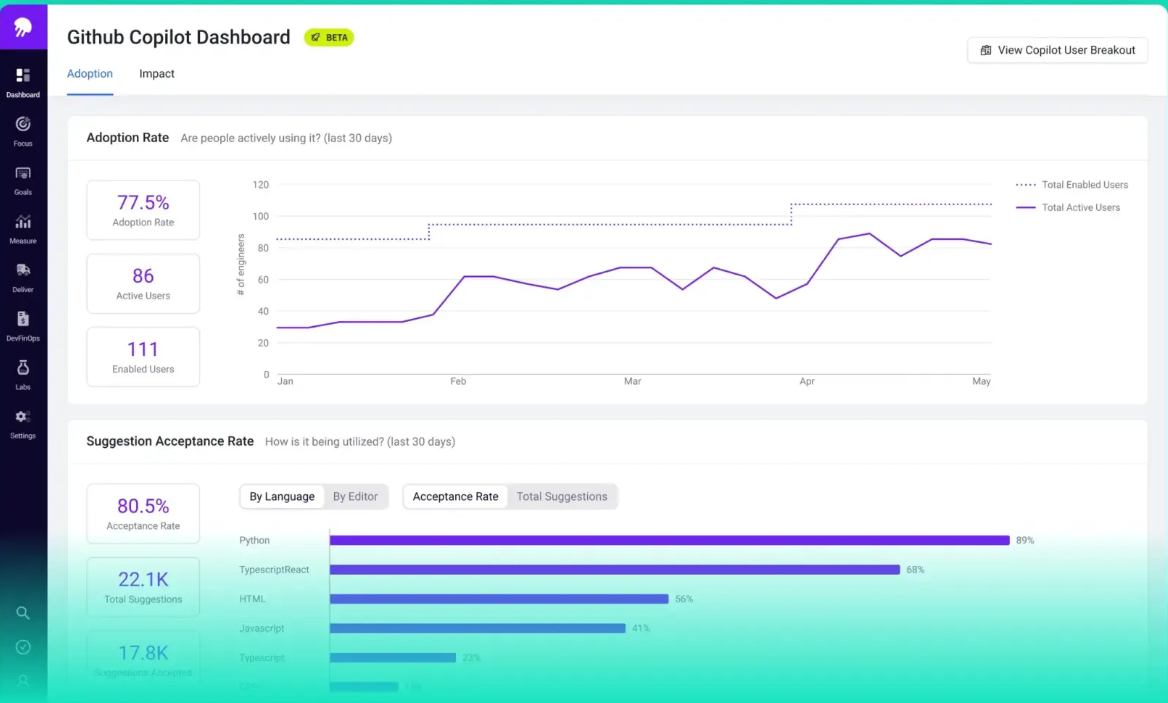
Here’s what you can do with it:
- Track adoption across your org: Jellyfish breaks down active users by team, segment, and usage level (power users, casual users, unlicensed engineers). If adoption is uneven, you can tell quickly whether it’s a training gap or a workflow fit issue.
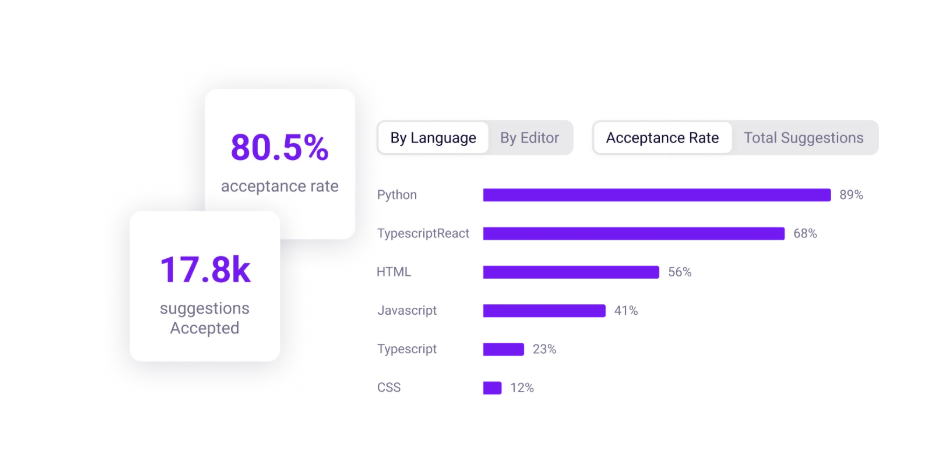
- Understand where Copilot has the most impact: Acceptance rates are broken down by language and editor, so you can pinpoint which use cases benefit most. You also get visibility into how Copilot maps to different work types and where it has the biggest effect.
- Connect usage to delivery outcomes: Jellyfish compares issue cycle time, PR cycle time, and throughput for AI tool users against non-users. That gives you a real before-and-after view instead of just activity numbers. For reference, Jellyfish’s own engineering team saw cycle time drop by up to 34% for Copilot users.
- Optimize spend: The platform tracks AI tool spend by PR, team, and initiative. You can see exactly where the investment pays off and where it doesn’t, which makes it easier to justify renewals, expand rollouts, or drop tools that aren’t delivering.
- Report to leadership: Jellyfish has an auto report builder that puts together executive-ready summaries of what’s working and where to invest next. This saves you from stitching together slide decks out of exported CSVs every quarter.
Plus, Jellyfish connects to your existing stack (Git, Jira, and your AI tools) and starts pulling insights without any tagging, migrations, or workflow changes.
Teams at Bynder, FanDuel, Varo, and TaskRabbit already use Jellyfish to track Copilot’s impact on delivery speed and resource allocation.
To see how it works for your company, book an AI Impact demo.
FAQs
FAQs
How do I manage permissions for Copilot analytics?
First, make sure the “GitHub Copilot usage metrics” policy is enabled under AI Controls > Copilot at the enterprise or organization level. Enterprise owners and billing managers get access to dashboards and APIs by default.
If you want to give visibility to other people (like engineering managers) without full admin access, create a custom enterprise role with the “View Enterprise Copilot Metrics” permission and assign it under People > Enterprise roles.
At the org level, you can do the same with a custom organization role that includes the “View Organization Copilot Metrics” permission. This lets you share access with the right people while keeping enterprise-wide data restricted.
Does Copilot filter secrets from usage data?
The usage metrics themselves don’t contain code content. They track aggregate activity like active users, acceptance rates, lines of code counts, and Copilot feature usage. No code snippets, prompts, or file contents are included in the dashboards, API responses, or NDJSON exports.
That said, Copilot does send code context to the model when writing suggestions, and GitHub has content exclusion settings that let admins block specific files or repositories from being used as context.
If your concern is about secrets leaking into Copilot’s suggestions rather than the analytics data, the best protection is content exclusion policies and avoiding hardcoded secrets in your codebase.
Why is my team’s acceptance rate dropping?
Acceptance rate can drop for reasons that have nothing to do with Copilot quality:
- The team moved toward more complex or domain-specific work where Copilot has less to offer
- New developers joined and are still learning how to use Copilot well
- Developers are working in languages or frameworks where Copilot’s suggestions are less accurate
Before drawing conclusions, look at the acceptance rate alongside active users and engagement. A drop in acceptance paired with steady usage of Copilot often means that developers are just being more selective.
About the author

Lauren is Senior Product Marketing Director at Jellyfish where she works closely with the product team to bring software engineering intelligence solutions to market. Prior to Jellyfish, Lauren served as Director of Product Marketing at Pluralsight.