In this article
Cursor went from niche developer tool to enterprise default faster than almost anyone expected. The company announced during its June 2025 Series C that more than half of Fortune 500 companies had engineers on the platform.
That kind of growth is exciting, but it also creates a blind spot. Most engineering leaders have no reliable way to track how their teams use Cursor, how much AI-generated code reaches production, or whether the investment pays off.
Cursor does offer built-in usage analytics, but the reporting has limitations. This guide walks through how Cursor collects data, what metrics and reports are available, how to export usage data, where the built-in tools fall short, and third-party alternatives that close the gap.
Overview of Cursor Usage Analytics
Overview of Cursor Usage Analytics
Cursor includes a built-in analytics dashboard available to team admins on Teams and Enterprise plans. The dashboard gives engineering leaders a centralized way to track how their teams use the AI code editor across the organization.
It covers three main areas:
- Adoption: Weekly and monthly active user counts that show how many people on your team use Cursor over time.
- Usage: AI requests, tab completions, and code suggestions reported at both the aggregate team level and as per-user averages.
- Cost: Spend and token consumption data are available through the admin dashboard and API, so admins can keep track of what the tool costs at scale.
The point of all this is practical. Once more than a handful of developers start to use Cursor, leadership needs a way to understand what they pay for and what they get in return.
The analytics dashboard provides that starting point, though the depth of what you can access varies by plan tier.
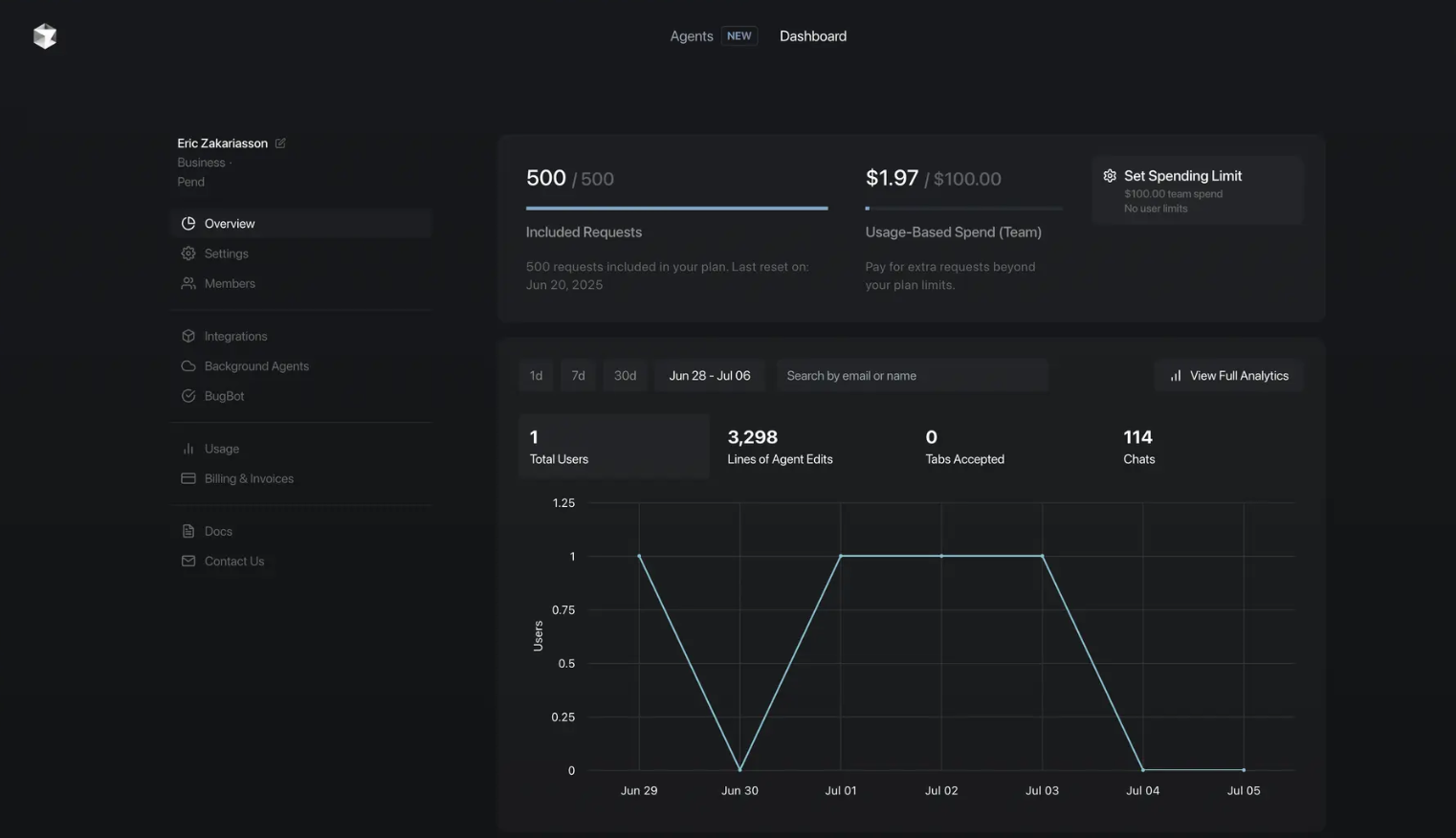
The Cursor.com admin dashboard overview shows included requests, usage-based spend, and key activity metrics. (Source: Cursor)
The Teams plan includes usage stats and reporting, while the Enterprise plan adds the AI code tracking API, audit logs, and more granular admin controls.
Later sections in this guide cover specific metrics, export options, and where the built-in reporting falls short.
How Cursor AI Data Collection Works
Cursor collects analytics data directly from the editor. When a developer interacts with any AI feature, the editor logs that event and sends it to Cursor’s backend servers.
This happens automatically in the background as developers work. The data then feeds into the admin dashboard, where team admins on Teams and Enterprise plans can view it.
The editor tracks several types of AI interactions:
| Event type | What Cursor logs |
| Tab completions | Inline suggestions shown and accepted, lines of code added or removed |
| Premium requests | Each conversation or prompt sent to the AI, counted as an individual request |
| Agent/Composer edits | Multi-file diffs accepted by the developer, with lines broken out by source |
| Background agents | Agent activity tied to the individual user (tracking support for this category is still limited – see note below) |
All of this data is tracked on a per-user, per-day basis. Cursor separates AI-generated lines from manually written lines, and it breaks down AI contributions by source (Tab vs. Agent/Composer).
Admins can view this through the dashboard. Enterprise admins can also pull it programmatically through the API, which we cover in a later section.
One important variable is Privacy Mode. On Teams and Enterprise plans, Privacy Mode can be applied org-wide, and multiple sources indicate it is on by default. When enabled, zero data retention applies to third-party model providers, and your code will not be used for training.
However, Cursor itself may still store some code data to power features like codebase indexing. There’s a stricter option called Privacy Mode (Legacy) that prevents Cursor from storing any code data at all.
On Hobby and Pro plans, Privacy Mode is off by default. With it off, Cursor may collect prompts, editor actions, and code snippets to improve its AI features and train its models. Prompts and limited telemetry may also be shared with model providers when specific users explicitly select their models.
| Key takeaway → Cursor captures AI usage data automatically from the editor and sends it to the admin dashboard. What gets stored depends on your plan and your Privacy Mode setting. Teams and Enterprise plans enforce Privacy Mode by default, which guarantees zero data retention from model providers. Hobby and Pro plan users need to turn on Privacy Mode manually to get the same level of protection. |
Key Metrics and Reports Available
Cursor breaks its analytics into a few categories. The dashboard shows data for a rolling window of recent activity, and admins can pull historical data through the API and CSV exports for longer periods. Admins can view metrics at the team level or as per-user averages.
Here’s a table breakdown:
| Category | Metric | What it tells you |
| Adoption | Weekly active users | How many developers used Cursor at least once that week |
| Adoption | Monthly active users | Same count over a 30-day window |
| Usage | Suggestions shown | How many inline AI suggestions a developer saw |
| Usage | Suggestions accepted | How many of those the developer accepted |
| Usage | All completions accepted | Accepted suggestions across Composer and Chat as well |
| Usage | Confirmed applies | Final user-confirmed inserts into the editor |
| Usage | Premium requests | Premium model requests used, tied directly to cost |
| Code contribution | AI lines added/deleted | Lines that came from AI suggestions the developer accepted |
| Code contribution | Total lines added/deleted | All lines changed in the editor, AI and manual combined |
| Code contribution | Manual lines | Calculated as total lines minus AI lines |
| Editor’s note → For teams that want to dig into the raw data, these metrics map to CSV export and Cursor API fields like totalTabsShown, totalTabsAccepted, and acceptedLinesAdded. |
Cursor marks a user as active if they used at least one AI feature on a given day. If none of those interactions happened, the user counts as inactive, even if the IDE was running.
Admins can calculate an acceptance rate from these numbers by dividing suggestions accepted by suggestions shown. Tracking that number over time helps you understand whether the AI output is useful to your team or whether something needs to change.
Keep in mind that these numbers come from editor activity. If a developer accepts a suggestion but later deletes the code or never commits it, those lines still show up in the metrics for that day.
The same applies to copy-pasted AI output. If a developer copies code from a suggestion without accepting it through the IDE’s built-in flow, those lines won’t count as AI-generated at all. This means the dashboard can both overcount (accepted but uncommitted code) and undercount (AI-influenced code that bypasses the accept action).
For teams that want to see what AI-generated code makes it into the actual codebase, the AI Code Tracking API on Enterprise plans maps AI contributions to individual git commits.
Data Exports and User-Level Token Management
Cursor gives team admins a few ways to pull usage data out of the dashboard, plus a set of controls for managing spend at the team and individual level.
On the export side, the options depend on your plan tier:
| Export method | What it provides | Plan required |
| CSV export | Per-user, per-day metrics downloaded directly from the dashboard. Includes suggestions shown, suggestions accepted, lines added/deleted, premium requests, and active status. | Teams and Enterprise |
| Admin API | Programmatic access to member info, spending data, and detailed usage events. Returns data broken down by model, token type (input, output, cache), and user. | Enterprise only |
| Analytics API | Daily metrics on code edits, AI assistance usage, and active users. Designed for automated reporting and integration with BI tools. | Enterprise only |
| AI Code Tracking API | Commit-level AI contribution data. Maps AI-generated lines to specific git commits with repo, branch, and user metadata. | Enterprise only |
All API endpoints use the same Admin API key for authentication. Only team admins can create and manage these keys. For large data pulls, the AI Code Tracking API offers CSV endpoints that stream in pages of 10,000 records server-side.
On the spend management side, Cursor provides a few controls that let admins keep costs predictable:
- Team spend limits: Admins can set a monthly cap on total on-demand usage across the team. Once the limit is reached, on-demand requests stop until the next billing cycle.
- Dynamic spend limits: An optional setting that scales the team spend limit up or down automatically as the team size changes. This was enabled by default for all teams with a spend limit as of December 2025. Admins can turn it off at any time.
- Spend alerts: Email notifications that fire when on-demand usage hits a certain threshold at both the team and individual levels.
- Model restrictions: Admins can control which AI models are available to team members. Restricting access to expensive models (like high-thinking or MAX mode options) is one of the most direct ways to manage cost.
Per-user hard spend limits on Teams plans were deprecated on December 5, 2025, and replaced by spend alerts.
Teams plan admins can no longer set a hard cap on individual users, which means team-level limits and model restrictions carry most of the cost control weight.
Enterprise plans still support member-level spend limits, configurable through member overrides, group overrides, and the Admin API.
Admin checklist →
|
Known Limitations of Cursor Usage Analytics
Known Limitations of Cursor Usage Analytics
The native analytics cover a lot of ground, but they leave some important holes. If you plan to use Cursor’s reporting as your primary source of truth for AI tool performance, here is what you should know first:
- No link between usage and engineering performance: The dashboard tracks what happens inside the editor, but it stops there. It does not measure whether AI-generated code led to faster delivery, fewer bugs, or reduced review time. Cursor does not connect to your Git platform, CI/CD pipeline, or project management tools.
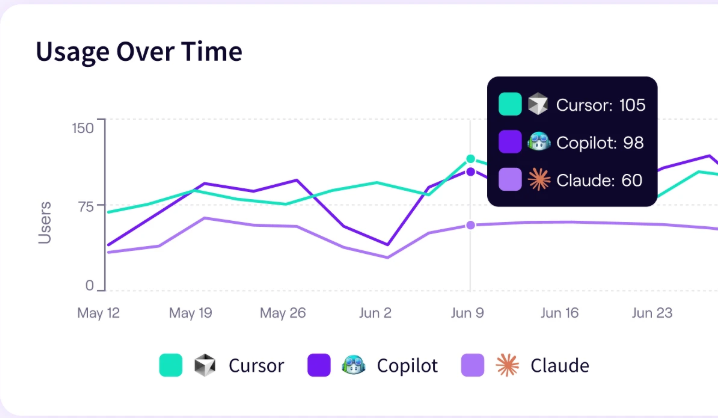
- Single-tool visibility only: Most engineering teams use more than one AI tool. A developer might use Cursor for code generation, GitHub Copilot for completions, and ChatGPT for debugging. Cursor’s analytics only show what happens inside Cursor. There is no way to see AI adoption across tools in a single view.
- AI influence is undercounted: Cursor only tracks explicit interactions. If a developer copies a suggestion from the chat panel and pastes it into the editor manually, that does not count as AI-generated code. Same for suggestions that a developer modifies before accepting, or work done while offline.
- Limited team grouping on non-Enterprise plans: Cursor launched pricing groups for Enterprise accounts in December 2025, which let admins map usage to their org structure, track spend by group, and compare adoption across teams. However, this feature is Enterprise only. On the Teams plan, the dashboard still reports data by individual user email with no built-in way to group developers by team, department, or project.
- Limited historical view in the dashboard: The dashboard is oriented toward recent activity and doesn’t support long-term trend analysis natively. The API and CSV exports let you pull historical data, but date range caps apply (90 days per request for the Admin API and 30 days for the Analytics API). For longer periods, you need to make multiple requests and stitch the data together yourself.
- Missing usage-based alerts: Cursor added spend alerts for cost management, but there are no usage-based alerts. If adoption drops or a team stops using the tool, the dashboard will not point it out. You have to monitor the numbers manually or build your own alerting on top of the API.
- Dashboard reliability: Multiple users on the Cursor community forum have reported issues with analytics not loading, data discrepancies between the dashboard and CSV exports, and gaps where usage data stops appearing for extended periods. The analytics infrastructure is still maturing.
| Worth noting → These gaps do not mean Cursor’s analytics are not useful. For basic adoption tracking and cost visibility, the native tools work well. But if you need to connect AI usage to engineering outcomes, compare across tools, or report at the team level, you will need to supplement with a third-party platform. The next section covers those options. |
PRO TIP 💡: Jellyfish has a dedicated Cursor dashboard that fills several of these gaps. It connects Cursor usage to delivery metrics like cycle time and throughput, breaks down adoption by team or role, and evaluates Cursor alongside Copilot, Claude Code, and Windsurf in a single vendor-neutral view.
Third-Party Analytics and Reporting Alternatives
Third-Party Analytics and Reporting Alternatives
For teams that need more than what Cursor provides out of the box, several third-party platforms now integrate directly with the API and bring the reporting depth that the native dashboard does not offer.
Here are some popular options available:
- Jellyfish is an engineering management platform that ties Cursor usage to delivery metrics like cycle time, PR velocity, and code quality. It fills the biggest gap in Cursor’s native analytics by connecting AI activity to delivery outcomes. It also supports cross-tool comparison across Cursor, Copilot, Claude Code, and others from a single dashboard.
- Hivel pulls from Cursor’s Admin API and breaks adoption data into categories like AI contribution, coverage, and engagement intensity. It also separates tab auto-completions from inline chat and Composer suggestions, which gives a more accurate breakdown of how developers interact with AI features.
- Opsera Unified Insights provides out-of-the-box Cursor dashboards alongside its broader DevSecOps analytics. It tracks the four metrics most teams want first (suggestions, accepted lines, acceptance rate, active users) and connects them to DORA metrics. Copilot and Windsurf dashboards are also available from the same platform.
- Cursor Usage Widget is a lightweight macOS app for personal usage tracking. It shows token consumption and spend by model in the menu bar so developers can see where they stand at a glance. It does not offer team analytics, but it is one of the simplest ways for individual users to avoid hitting rate limits or running up unexpected costs.
- Open source / self-hosted: Teams that want full control over their data can use self-hosted dashboards built on Cursor’s Enterprise API. The most complete option on GitHub (cursor-usage-tracker) tracks spend by user, model usage trends, and daily active users (DAU). It also includes anomaly detection with Slack or email alerts and supports billing group management for organizing users by team.
How to make the right choice → For most engineering leaders, the priority is connecting AI usage to delivery outcomes. Jellyfish is the strongest fit for that. This is because it maps Cursor data directly to SDLC signals and supports cross-tool comparison in one view.
Hivel is strong on adoption cohorts and engagement segmentation, while Opsera fits teams that want Cursor data inside a broader DevSecOps view. The Cursor Usage Widget is useful for personal cost tracking at the individual level.
Measure Cursor Usage & Impact Across the SDLC with Jellyfish
Measure Cursor Usage & Impact Across the SDLC with Jellyfish
We covered a lot of ground in this guide, from how Cursor collects data at the editor level to the specific metrics available on the dashboard, known limitations, and third-party alternatives.
If your team is at the point where you need to connect all of that to engineering performance and report on it to leadership, Jellyfish has a dedicated Cursor dashboard built for exactly that.
It tracks Cursor adoption, usage patterns, and delivery impact across your org and ties everything to SDLC metrics like cycle time, throughput, and code quality.
With Jellyfish, you can:
- Automatically detect who uses Cursor, how often, and in what workflows without manual reporting or surveys
- Drill into adoption by team, role, or segment to see where usage is strong and where enablement needs focus
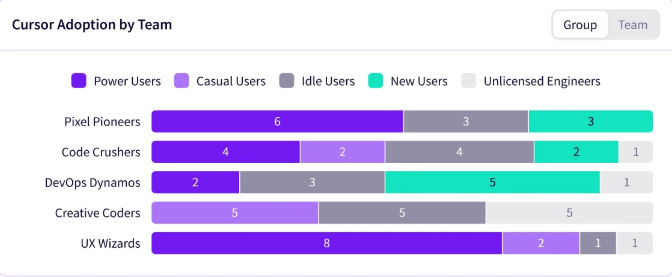
- Compare before-and-after delivery metrics for Cursor-influenced work, including cycle time, PR velocity, and throughput
- Evaluate Cursor alongside GitHub Copilot, Claude Code, Windsurf, and other AI tools in a single vendor-neutral framework
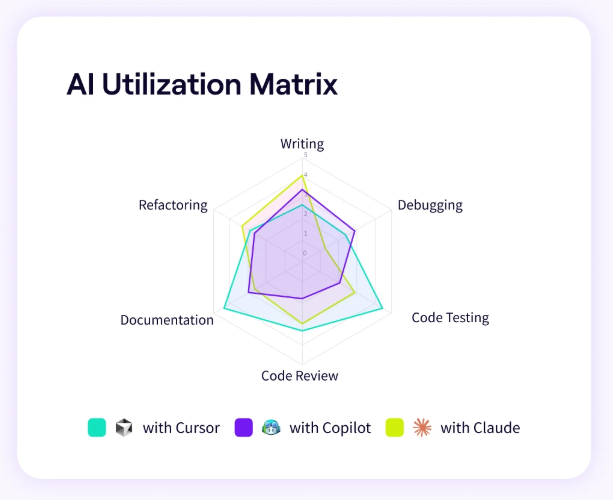
- Give leadership defensible ROI data built on real SDLC signals, not vendor-reported activity counts
Jellyfish works with your existing Git, planning, and workflow data. There is no tagging, no manual setup, and no changes to how your team works. Most teams see adoption insights within days and delivery-impact data within the first sprint.
Book an AI Impact demo to see how Jellyfish brings clarity to Cursor adoption, spend, and performance across your engineering org.
FAQs
FAQs
What are Cursor AI analytics?
Cursor AI analytics are the native reporting tools that come with Cursor’s Teams and Enterprise plans. They let team admins track who uses the AI code editor, how often, and what impact it has on code output.
The dashboard shows metrics like active users, suggestion acceptance rates, AI-generated lines of code, and premium request usage, all tracked at the editor level on a per-user, per-day basis.
Can I export my Cursor usage data?
Yes. Team admins on Teams and Enterprise plans can export usage data as a CSV file directly from the dashboard. The export includes per-user, per-day metrics like suggestions shown, suggestions accepted, lines added and deleted, and active status.
For automated or recurring reporting, Enterprise customers have access to an Admin API, Analytics API, and AI Code Tracking API. The Admin and Analytics APIs return usage, spend, and member data programmatically. The AI Code Tracking API maps AI-generated code to specific git commits.
Does Cursor track offline code edits?
No. Cursor needs an active internet connection to log usage data. If a developer works offline, none of that activity shows up in the metrics. This is one of the major limitations of the built-in analytics.
How does Cursor count AI-generated lines of code?
Cursor tracks AI-generated lines based on explicit accepts in the editor. When a developer accepts a suggestion from a tab completion or Composer edit, the lines added and deleted are recorded as AI contributions for that day.
The count happens at the moment of acceptance, regardless of whether the code is later committed or pushed. Manual lines are calculated by subtracting AI lines from total lines. Copy-pasted suggestions and modified code are not counted.
About the author

Lauren is Senior Product Marketing Director at Jellyfish where she works closely with the product team to bring software engineering intelligence solutions to market. Prior to Jellyfish, Lauren served as Director of Product Marketing at Pluralsight.