In this article
Jellyfish’s AI Engineering Trends report found that engineering teams in the top quartile of AI adoption merge twice as many PRs per engineer as those in the bottom quartile. Yet, only 20% of teams use engineering metrics to measure AI’s impact.
Cursor is a good case in point. Over this past year, it has become one of the most widely adopted AI coding assistants in enterprise engineering. According to our data, its share of AI-assisted PRs grew from under 20% in early 2025 to nearly 40% by year’s end.
But most teams that roll it out have no structured way to measure its performance across their org. And without that visibility, it’s hard to make informed decisions about renewals, rollout scope, or how Cursor fits into a broader AI tool strategy.
This guide walks through how Cursor AI monitoring works at the native level, what falls outside its reach, and how to get the full picture with engineering intelligence platforms.
Why Monitoring Cursor AI Usage Matters for Engineering Teams
Why Monitoring Cursor AI Usage Matters for Engineering Teams
Most engineering teams are past the point of casually testing AI coding tools. Cursor is already part of the workflow for many developers, which means leaders need a clear view of how people use it and what impact it has across the team.
That visibility matters for a few practical reasons. Here are the biggest ones:
- Adoption doesn’t equal usage: A team can have 200 Cursor licenses and only 40 active daily users. The Jellyfish AI Engineering Trends report found that median AI adoption across companies is 67%, but that doesn’t tell you how many of those developers use the tool consistently. Monitoring gives you the usage depth that license data alone can’t.
- Productivity gains aren’t guaranteed: According to the Jellyfish 2025 State of Engineering Management report, 62% of teams report at least 25% productivity gains from AI tools. At the same time, a METR study found that experienced developers on familiar codebases were 19% slower when using AI, despite perceiving a 20% speed boost. Without monitoring, you have no way to know which version of the story applies to your team.
- AI-generated code carries security risk: Veracode’s 2025 GenAI Code Security Report tested over 100 LLMs and found that 45% of AI-generated code samples contained OWASP Top 10 vulnerabilities. As Cursor usage scales across a team, so does the volume of AI-written code that reaches your codebase.
- AI governance hasn’t kept pace with AI adoption: IBM’s 2025 Cost of a Data Breach report found that only 37% of organizations have AI governance policies in place. Without monitoring, you have no way to know whether Cursor usage across your team aligns with internal security standards, data handling rules, or compliance.
- Code quality can slip without anyone noticing: GitClear data from 2024–2025 shows that code churn rose from a 3.3% baseline in 2021 to 5.7–7.1%, right as AI-assisted development took off. That means more recently written code gets rewritten or deleted shortly after it ships. Monitoring helps you spot this pattern early, so AI-generated code doesn’t inflate PR volume without producing anything that lasts.
- AI tool spend grows faster than most teams expect: The Larridin Developer Productivity Benchmarks 2026 report found that total AI tool costs now average $200 to $600 per engineer per month, with agentic tools pushing that as high as $2,000+ in token spend alone. Cursor licenses look affordable in isolation, but the full cost stack grows quickly. Without monitoring that ties spend to outcomes, it’s hard to justify the investment at budget review time.
Can your team answer these questions about Cursor usage today?
The fewer of these you can answer, the stronger the case for a structured monitoring approach. |
Understanding Monitoring in Native Cursor AI Analytics
Understanding Monitoring in Native Cursor AI Analytics
Cursor’s Business and Enterprise plans include built-in analytics that give admins a view of how the tool gets used across the organization.
The next few sections cover how that tracking works, what metrics are available, and what the platform offers for security and audit visibility.
How Cursor AI Tracking Works
Cursor handles usage tracking at the editor level. It logs every AI-related action a developer takes, from Tab completions to Agent edits to chat prompts. That data gets sent to Cursor’s servers automatically, with no setup on the developer’s end.
From there, team admins on Teams and Enterprise plans can pull it up through a dashboard that breaks down usage across the team and by individual user.
Cursor also tracks which specific lines of code came from AI and which were written manually. The editor creates a signature for every AI-suggested line, whether it came from Tab or Agent, and stores it locally on the developer’s machine.
At commit time, Cursor compares those saved signatures to the committed code and marks matches as AI-generated. The whole process runs locally, and no source code leaves the developer’s machine. The dashboard only sees metadata, such as line counts, attribution data, and usage events.
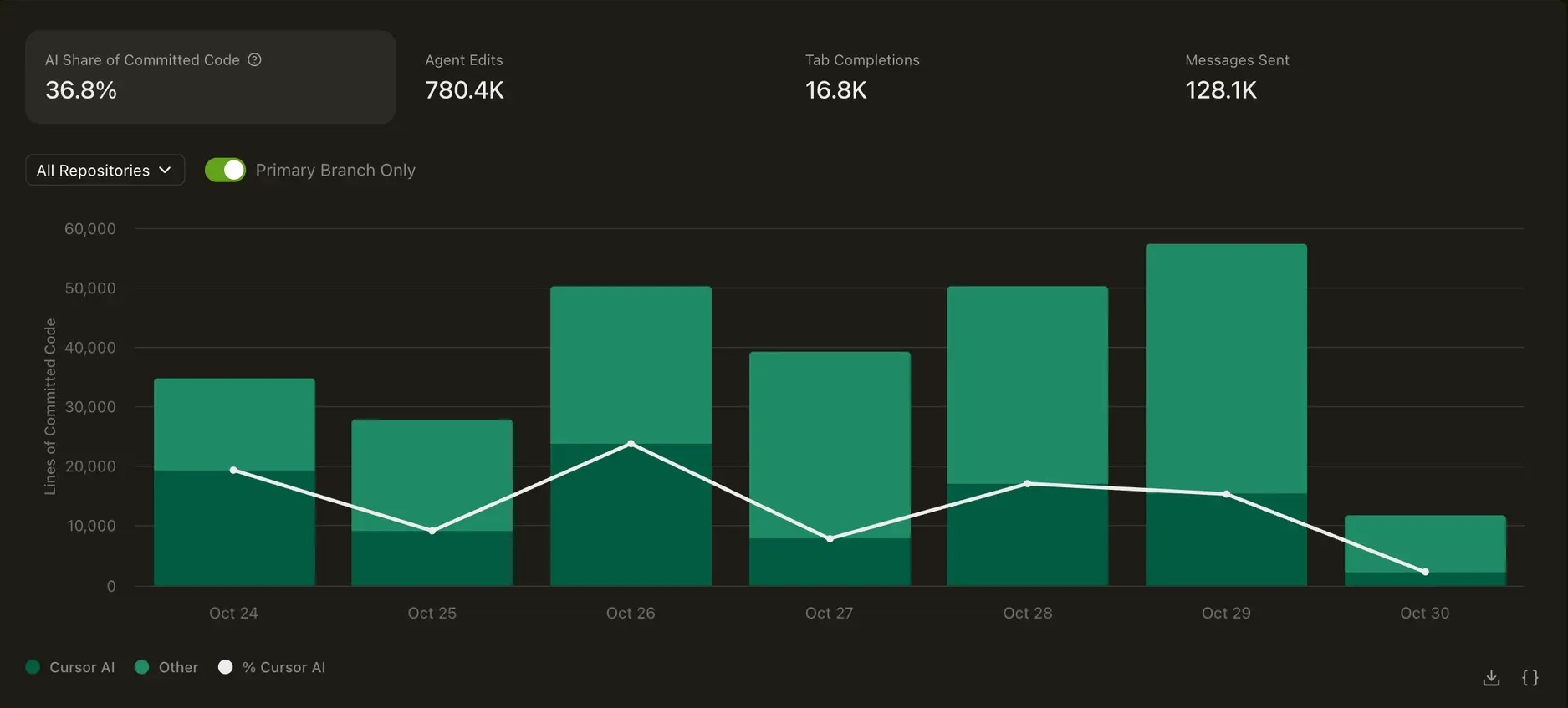
An example of Cursor’s team analytics view, showing how AI usage is measured across committed code, agent activity, completions, and chat interactions over time. (Source: Cursor)
The system works well for most use cases, but there are a few edge cases and limitations worth knowing about:
- Cursor only collects analytics data from recent client versions (1.7 and later for the current dashboard). Older versions won’t report usage data.
- AI Code Tracking, which maps AI-generated lines to specific git commits, requires an Enterprise plan.
- Automated code formatting can invalidate diff signatures and throw off attribution.
- AI Code Tracking doesn’t attribute lines from Background Agents or the Cursor CLI to specific commits yet. The analytics dashboard tracks adoption and activity for both, but commit-level line attribution only covers Tab and Composer.
- The developer needs to commit from the same machine where the AI code was written. Otherwise, attribution breaks.
What Metrics Can Actually Be Tracked
The analytics dashboard organizes data across several areas. What you can access depends on your plan tier and whether you pull it from the dashboard, a CSV export, or the API. Below, we’ll cover what’s available today.
Adoption and activity:
- Weekly and monthly active user counts across your team
- Daily active user breakdowns by product area (Tab, Agent, Background Agent, CLI, Bugbot)
- Client version distribution so you can see which Cursor versions your team runs
- A usage leaderboard that ranks team members by chat messages, Tab completions, and Agent lines of code
Code output:
- AI lines of code added and deleted per user per day
- Total lines added and deleted across AI and manual contributions combined
- The difference between those two numbers gives you a rough measure of how many lines were written by hand
- AI share of committed code at the repository level, showing what percentage of committed lines came from AI
- Tab completions suggested vs. accepted
- Agent edits suggested vs. accepted, broken down by file extension
Model and feature usage:
- Which AI models your team uses and how often (e.g., Claude Sonnet vs. GPT-4o)
- Messages sent by mode (Agent, Ask, Cmd+K)
- MCP tool adoption by tool name and server
- Commands, Skills, and Plans mode adoption broken down by day
Cost and spend:
- Premium request usage per user, which maps directly to what you pay
- Team-level spend on usage-based pricing
- Token consumption data through the API, split by model and token type (input, output, cache)
Conversation Insights (Enterprise only):
Enterprise plans include a feature called Conversation Insights that goes a step further. It looks at each agent session and categorizes the work across four dimensions:
- Category (e.g., Bug Fixing, Code Refactoring, New Features, Configuration, Documentation)
- Work Type (Maintenance, Bug Fixing, New Features)
- Complexity (how complex the task was)
- Specificity (how specific the developer’s prompts were)
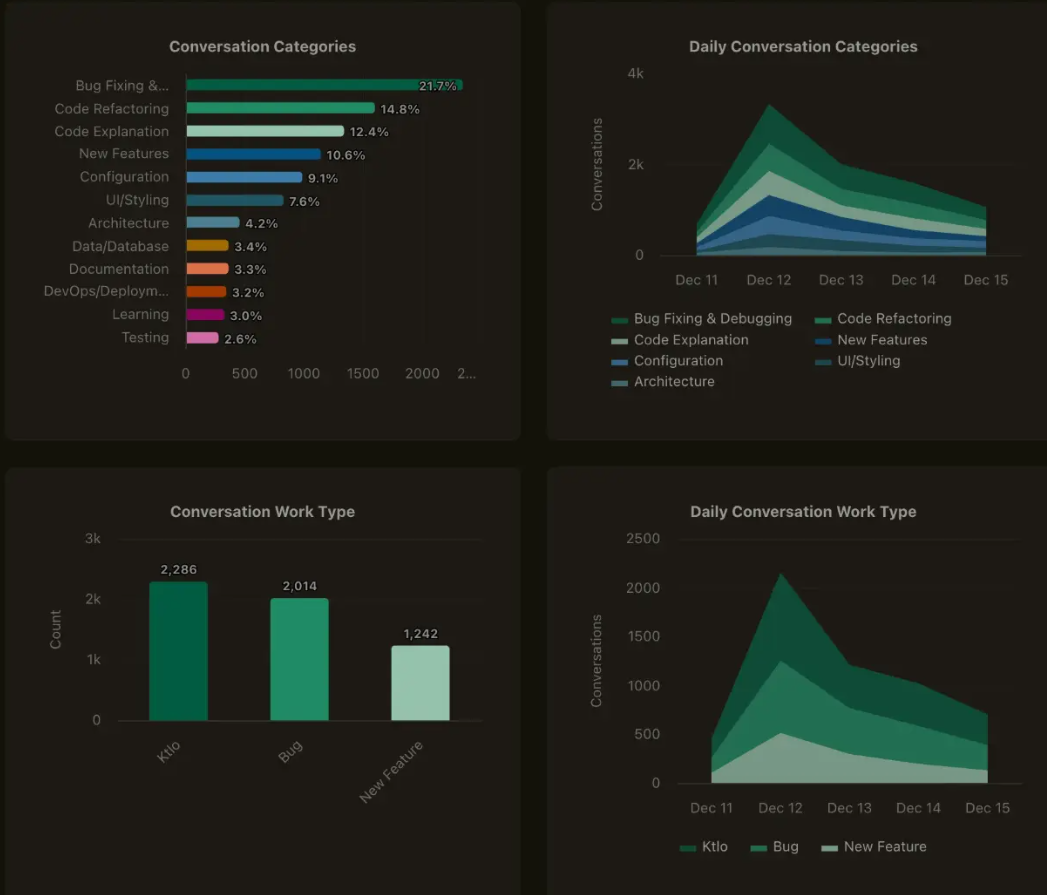
Example of Cursor’s Conversation Insights dashboard, which groups agent activity by conversation category and work type over time. (Source: Cursor)
The classification happens locally on the developer’s machine. No PII or sensitive data gets transmitted as part of this process.
Cursor AI Security and Audit Monitoring
Privacy Mode is the starting point. Teams and Enterprise plans have it on by default, which means third-party model providers can’t retain your code or use it for training. If you need an even stricter setup, Privacy Mode (Legacy) prevents Cursor itself from storing any code data at all. Hobby and Pro users don’t get Privacy Mode out of the box and need to enable it manually.
Enterprise plans also include audit logs that track admin-level activity across the org. Logged events include:
- Authentication (logins, logouts)
- User additions, removals, and role changes
- API key creation and revocation
- Team settings updates
- Directory group modifications
- Privacy Mode changes
Admins can filter by date, event type, or specific user and export results to CSV. If your compliance setup requires it, Cursor can also stream logs to SIEM platforms, webhook endpoints, S3 buckets, or tools like Elasticsearch.
Keep in mind that these logs focus on admin actions. Editor activity, including prompts and AI output, falls outside their scope. If you need that level of visibility, Cursor offers hooks that let you forward prompt and code generation events to your own compliance infrastructure.
Cursor is SOC 2 Type II certified and commits to at least annual penetration testing by third-party firms. The Trust Center provides access to SOC 2 reports, pen test summaries, security architecture documentation, and data flow diagrams. On the infrastructure side, Cursor runs primarily on AWS, with zero data retention enforced across all subprocessors when Privacy Mode is enabled.
Limitations of Native Monitoring
There’s a ceiling to what you can learn from editor-level data alone. Here’s where most teams hit it:
- Editor-level visibility only: Cursor measures what developers do with AI features, but it doesn’t connect any of that to downstream outcomes. Without integrations into Git, CI/CD, or planning tools, you can’t answer questions like whether AI-assisted work ships faster or produces fewer defects.
- Conversation Insights costs extra: It was free during the preview period, but started charging in January 2026 (inference cost plus a Cursor token fee). So the deeper analytics layer on Enterprise isn’t included in the base price.
- AI attribution has blind spots: The tracking relies on developers accepting suggestions through Cursor’s built-in flow. Code that gets copy-pasted from chat, modified before acceptance, or written without an internet connection won’t register as AI-generated. That means the dashboard likely underreports how much of your codebase AI influenced.
- Can’t deploy Cursor within your own network. Even on the Enterprise plan, there’s no self-hosted option. AI requests pass through Cursor’s infrastructure, which means your code leaves the local environment during processing. Privacy Mode prevents retention on the other end, but organizations that require all data to stay on-premise won’t be able to meet that requirement with Cursor today.
- No way to organize data by team on the Teams plan: Enterprise admins can map users to their org structure and compare usage across groups. Teams plan admins don’t have that option. The dashboard reports by individual email, which makes it hard to compare adoption across squads or departments.
- The dashboard doesn’t support long-range reporting: The dashboard is oriented around recent usage. You can pull older data through the API, but each request covers a maximum of 30 days. Anything longer means multiple queries and manual assembly.
- Developers on older client versions don’t show up in analytics at all: Cursor only collects usage data from version 1.5 or higher. If part of your team runs an older build, their activity won’t appear in the dashboard, the API, or any CSV export. That means your adoption and usage numbers could be understated without anyone realizing it, especially on larger teams where client version management isn’t centralized.
- AI Code Tracking doesn’t cover everything yet: Background Agents and the Cursor CLI fall outside its scope for now. On top of that, automated code formatters can break diff signatures and lead to incorrect attribution. And if a developer writes code on one machine but commits from another, the tracking won’t connect the two.
| Quick tip → The Analytics API caps each request at 30 days. To build longer trend views, schedule automated pulls on a monthly cadence and store the results in your own data warehouse or BI tool. That way, you accumulate a historical dataset over time without relying on the dashboard for long-range reporting. |
Alternatives & Advanced Monitoring Solutions
Once you’ve hit the limits of what Cursor’s dashboard can show you, the next step is finding the right complement. The tools in this section take different approaches to AI monitoring, from automations inside Cursor itself to production-level observability to full engineering intelligence platforms.
Cursor Automations
Cursor Automations let you run cloud agents that respond to events across your development workflow. You can trigger them on a schedule, from GitHub activity, Slack messages, Linear issues, PagerDuty incidents, or custom webhooks.
The agents can do quite a bit once triggered:
- Review new pull requests for vulnerabilities or code quality issues
- Post findings to a Slack channel
- Leave inline code comments on PRs
- Assign reviewers based on the code involved
- Open new pull requests with code changes
- Read Slack channels for additional context
- Connect to external data sources through MCP servers
To create one, you pick a trigger, write a prompt that describes what the agent should do, and select which tools it can access, like GitHub, Slack, or an MCP server.
You also set a permission scope that controls who can manage the automation and how it gets billed. Team-owned automations bill to the team’s shared usage pool. Private and team-visible automations bill to the individual who created them.
Automations aren’t a monitoring tool on their own. But for teams that generate a high volume of AI-assisted code, they offer a way to build automated quality and security checks directly into the PR workflow.
They won’t replace a dedicated monitoring platform, but they do bring a practical layer of oversight at the point where code enters the codebase.
Datadog Cursor Extension (Production Monitoring)
The Datadog integration with Cursor works in two directions, and both matter for monitoring.
Inside Cursor, the Datadog extension connects to Datadog’s MCP server and brings production observability data into the IDE. Developers can query logs, traces, metrics, and dashboards without leaving the editor. The extension also supports:
- Error tracking and live debugging
- Dynamic logpoints that capture variable snapshots from production without re-deploying
- Static code analysis for security and maintainability issues
- Direct links from Datadog stack traces to the relevant source file in Cursor
For teams that ship a lot of AI-assisted code, this means developers can trace production issues back to specific changes and fix them in the same workflow.
Inside Datadog, the Cursor integration tile feeds usage, activity, and cost data from Cursor into your existing dashboards. Once connected with an admin-scoped API key, you can build monitors and alerts around Cursor adoption and spend. Enterprise customers also get access to AI commit and code change metrics.
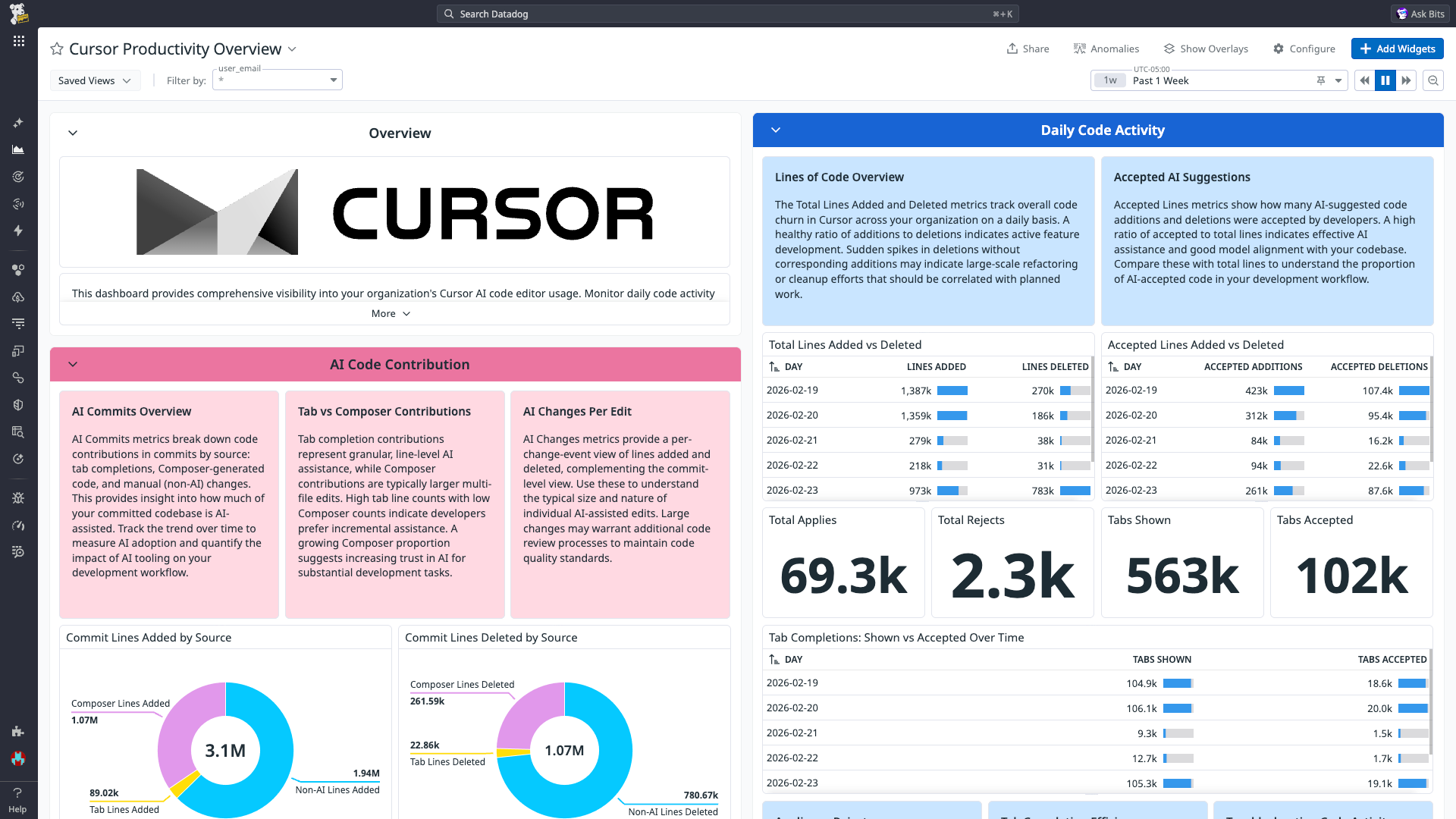
Example of a Datadog dashboard built on Cursor integration data, showing AI code contribution, tab and composer activity, accepted suggestions, and daily code activity in one view. (Source: Datadog)
If your team already runs Datadog as its central observability platform, this integration puts production health and AI tool usage data in the same place.
Comet’s Opik & MCP Telemetry (AI Application Monitoring)
Opik is an open-source platform built by Comet for monitoring LLM applications. It covers tracing, evaluation, prompt management, and runtime metrics across the full lifecycle of an AI-powered product. It’s not Cursor-specific, but it integrates with Cursor in two ways that are relevant here.
The first is a Cursor extension that logs all Cursor conversations to Opik. Once installed, every chat session shows up in Opik’s dashboard, where you can review full conversation threads, inspect individual LLM responses, and share them across the team. This gives engineering leads visibility into how developers interact with Cursor’s AI functionalities and what kinds of tasks they use it for.
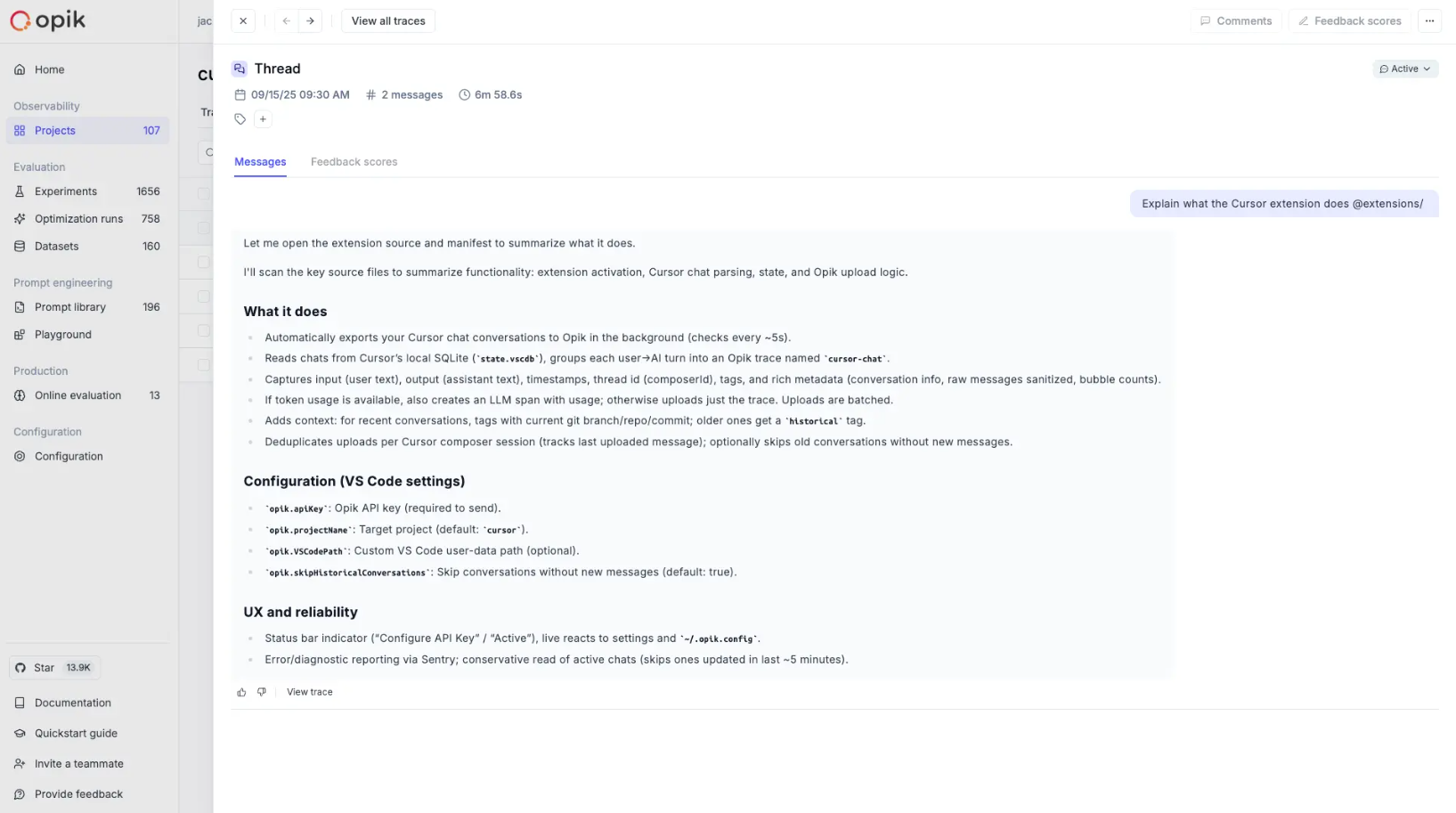
An example of a Cursor conversation logged in Opik, where teams can review the thread, inspect responses, and trace activity across a session. (Source: Comet)
The second is an MCP server that connects Opik’s data module to Cursor directly. Developers can query traces, fetch project metrics, manage prompt versions, and analyze telemetry from inside the IDE without switching to a browser. You can also use it to improve prompts based on real trace data. For example, by asking Cursor to suggest changes based on the most recent traces with high hallucination scores.
The key capabilities Opik brings include:
- Full tracing of LLM calls, conversations, and agent activity
- Automated evaluations for hallucination detection, moderation, and RAG quality
- Prompt version management and optimization based on live telemetry
- Project-level metrics like response time, token consumption, and success rates
- Self-hosted option for teams that need to keep data on their own infrastructure
The important distinction here is scope. Datadog monitors production infrastructure, while Opik monitors the AI application itself.
If your team uses Cursor to build LLM-powered products (chatbots, RAG systems, agentic workflows), Opik helps you track how those applications perform after deployment. If your team uses Cursor primarily to write and ship code faster, Opik is less relevant.
Jellyfish for Comprehensive Engineering Management
Where the other tools in this section focus on specific parts of the stack, Jellyfish operates at the engineering management level. It tracks Cursor adoption and ties usage data to delivery outcomes across the full software development lifecycle.
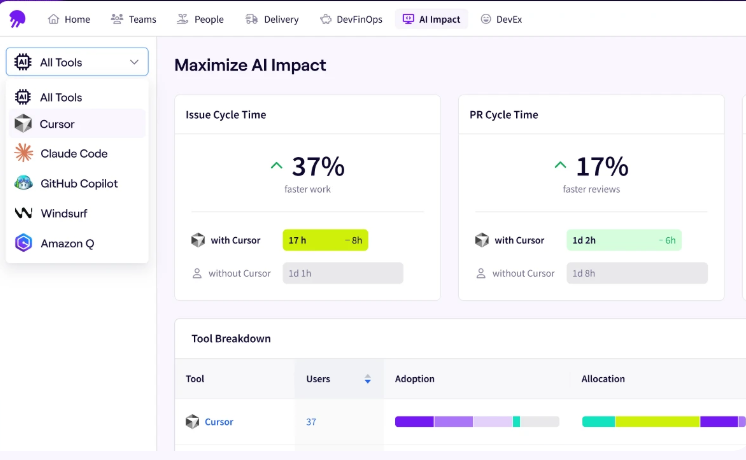
The Jellyfish Cursor dashboard gives engineering leaders:
- Impact on delivery performance — see whether Cursor-influenced work moves through the pipeline faster by comparing cycle times, PR volume, and throughput against periods before adoption
- Adoption depth across the org — find out which teams use Cursor daily, which ones dropped off after onboarding, and where focused enablement could move the needle
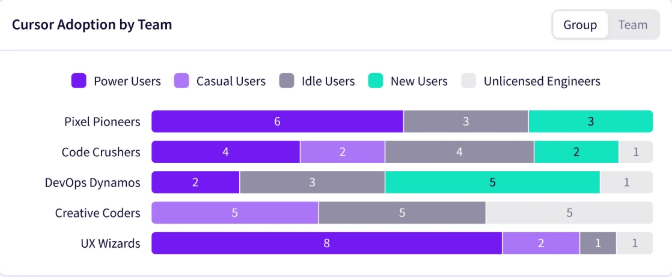
- Defensible ROI for leadership — build executive reports grounded in actual delivery data instead of surface-level activity metrics
- Multi-tool view — measure how Cursor performs relative to Copilot, Claude Code, Windsurf, and other AI tools your team uses, all from one dashboard
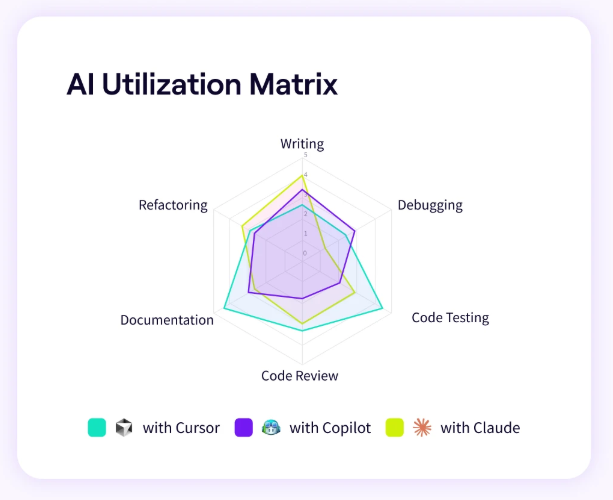
- Spend tied to results — track what you pay for AI tools across teams and initiatives and see whether that investment shows up in engineering output
Setup doesn’t add more work for your team. Jellyfish connects to the tools you already use and finds insights without manual tagging or process changes.
The difference comes down to what you’re trying to measure. Datadog and Opik focus on production and application-level monitoring, while Jellyfish shows you how AI tools affect engineering performance at the org level.
Centralize Your AI Monitoring Strategy with Jellyfish
Without a centralized approach, most engineering leaders end up piecing together a fragmented view of AI tool performance. Cursor data in one dashboard, Copilot data in another, spend tracked in a spreadsheet, and no reliable way to tie any of it to delivery outcomes.
With Jellyfish by your side, you can:
- Monitor Cursor side by side with Copilot, Claude Code, and every other AI tool in your stack from one dashboard
- Find out whether AI-assisted code leads to faster cycle times, higher throughput, and better code quality
- Make budget conversations easier with spend data that maps directly to engineering results
- Spot which teams get more value from Cursor and which ones dropped it after the first week
- Build executive-ready reports that tie AI tool usage to the metrics leadership asks about most
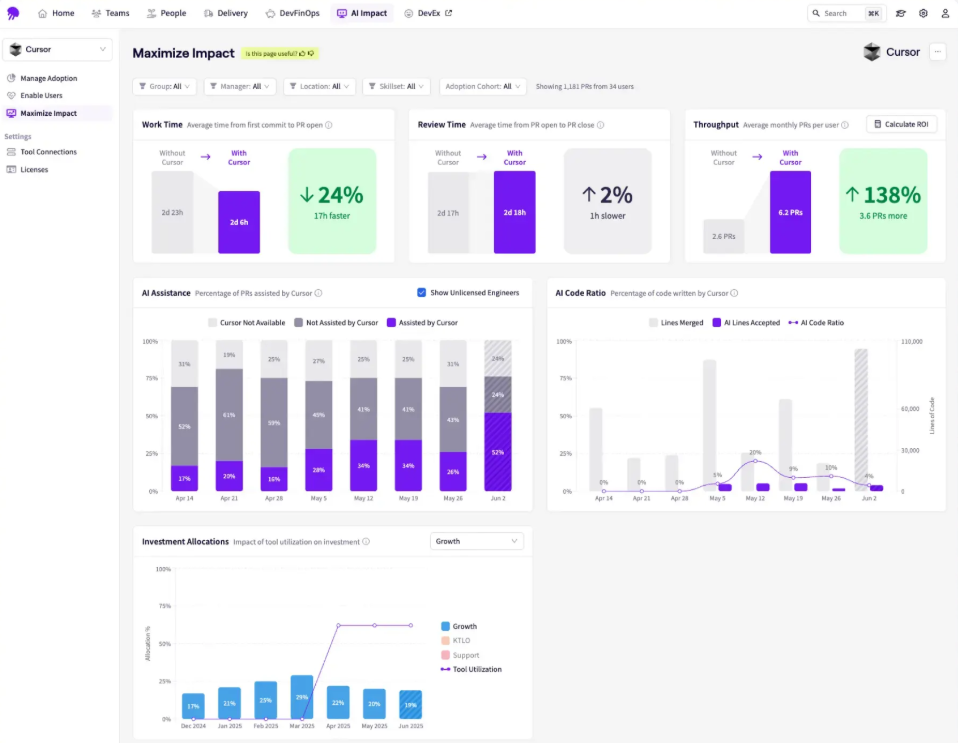
If any of the gaps covered in this guide sound familiar, Jellyfish is worth a look. Book an AI Impact demo to see it with your own data.
FAQs
How do you track active users in Cursor?
Cursor marks a user as active on any day they interact with at least one AI feature, whether that’s a Tab completion, Agent edit, Background Agent, CLI session, or Bugbot. If a developer has Cursor open but doesn’t use any AI feature that day, they count as inactive.
Admins on Teams and Enterprise plans can view weekly and monthly active user counts through the dashboard. The Analytics API (Enterprise only) also provides daily active user breakdowns by product area.
Does Cursor integrate with real-time GitHub workflows?
Yes. Cursor integrates with GitHub through its Automations feature. You can set up automations that trigger on GitHub events like pull request opens, merges, pushes, label changes, comments, and CI completions.
The agent can then review code, leave inline comments, open new pull requests, or request reviewers. Cursor also connects to GitHub through its Integrations dashboard for repository management and through the AI Code Tracking API (Enterprise only), which maps AI-generated code to specific git commits with repo and branch metadata.
Can I monitor which AI models my team is using?
Yes. The dashboard and Analytics API both report on model usage across your team. You can see which models developers use most, how many messages each model handles per day, and which users prefer which models.
Enterprise admins can also restrict model access through the dashboard settings, which helps control cost and standardize usage. The Analytics API provides this data at the team and per-user level with daily granularity.
How does Cursor tracking compare to Microsoft GitHub Copilot?
The two platforms cover similar ground at the surface level. Both track active users, suggestion acceptance, lines of code, and model preferences.
Where they differ is in how they structure the data:
- Copilot reports at the enterprise and org level, includes pull request lifecycle metrics, and now offers a separate code generation dashboard that splits activity between user-initiated and agent-initiated work.
- Cursor reports at the team level, offers per-user daily granularity, and provides commit-level AI attribution on Enterprise plans through the AI Code Tracking API.
The shared limitation is the same. Neither connects AI usage data to delivery outcomes like cycle time, throughput, or defect rates. For cross-tool comparison and outcome-based measurement, a platform like Jellyfish covers both.
Is there a way to monitor Cursor usage via Slack?
Not directly through a built-in Slack integration for analytics, but there are a few ways to connect Cursor data to Slack.
Cursor Automations supports Slack as both a trigger and a destination. You can set up automations that send AI activity summaries, code review results, or adoption alerts to a Slack channel.
On the API side, Enterprise customers can build custom workflows that pull usage data from the Analytics API and post updates to Slack on a schedule.
There are also open-source tools like cursor-usage-tracker on GitHub that include Slack alerting for anomalies like spending spikes or drops in daily active users.
Can I use a widget to see my usage data?
Yes, at the individual level. Cursor Usage Widget is a macOS menu bar app that displays your personal token usage and spend broken down by model.
It’s for individual developers who want to keep an eye on their own consumption, not for team-level monitoring. If you need org-wide visibility, the admin dashboard or Analytics API is the way to go.
About the author

Lauren is Senior Product Marketing Director at Jellyfish where she works closely with the product team to bring software engineering intelligence solutions to market. Prior to Jellyfish, Lauren served as Director of Product Marketing at Pluralsight.